
There are three different forms of PC access: web-browser access, Android-emulator access and native Windows software.
A browser or emulator may be usable, but a native Windows B9Game application has not been independently verified for this guide.
Method 1: Use B9Game in a Browser
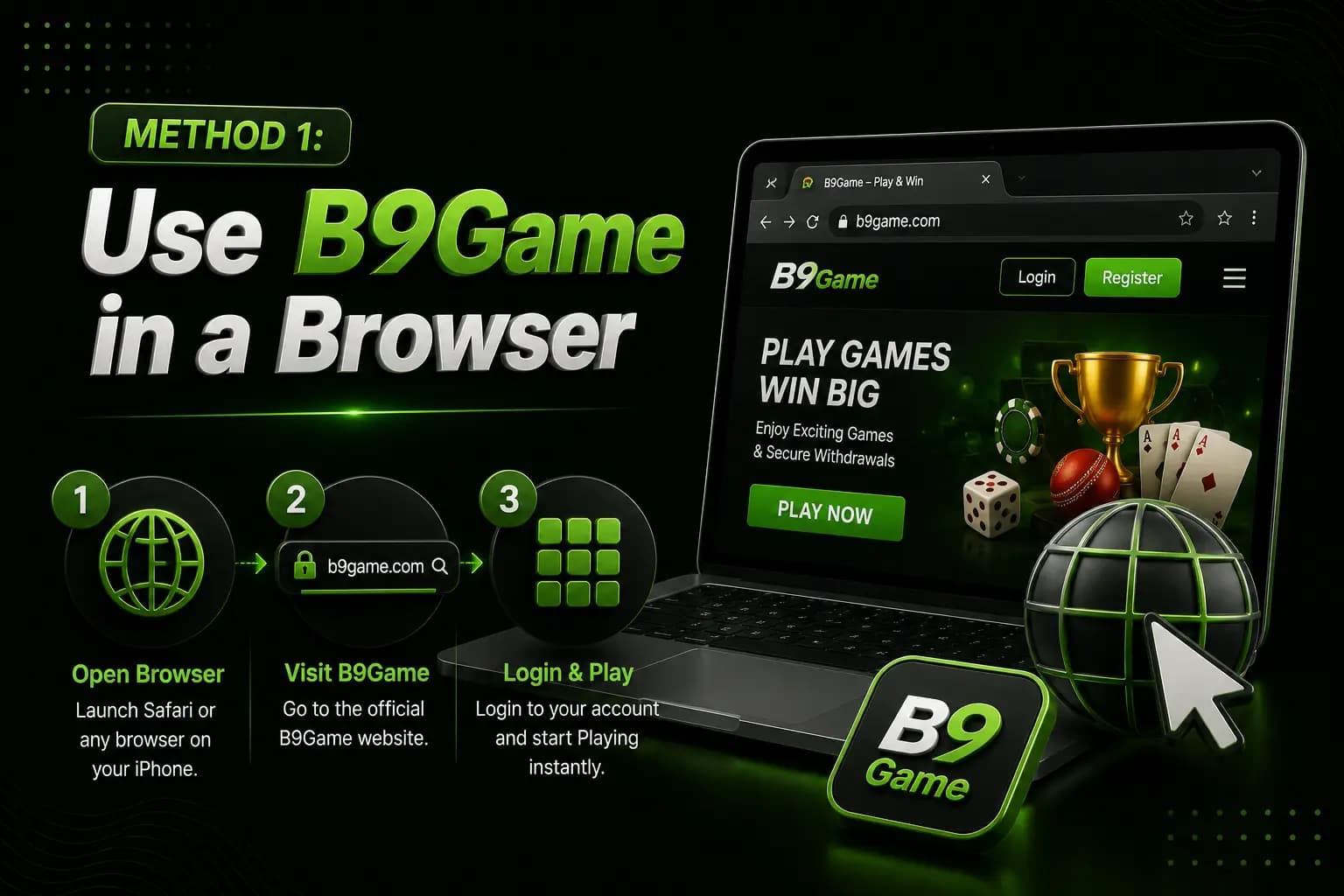
Browser access avoids installing an APK directly on Windows.
Steps
- Open an updated browser.
- Enter the verified platform address.
- Check the domain spelling.
- Select Login or Register.
- Enter the account details.
- Check whether the desired game loads.
- Log out when using a shared computer.
The public platform homepage displays login, registration, game categories and wallet navigation. Some sections may require an authenticated account.
Method 2: Use an Android Emulator
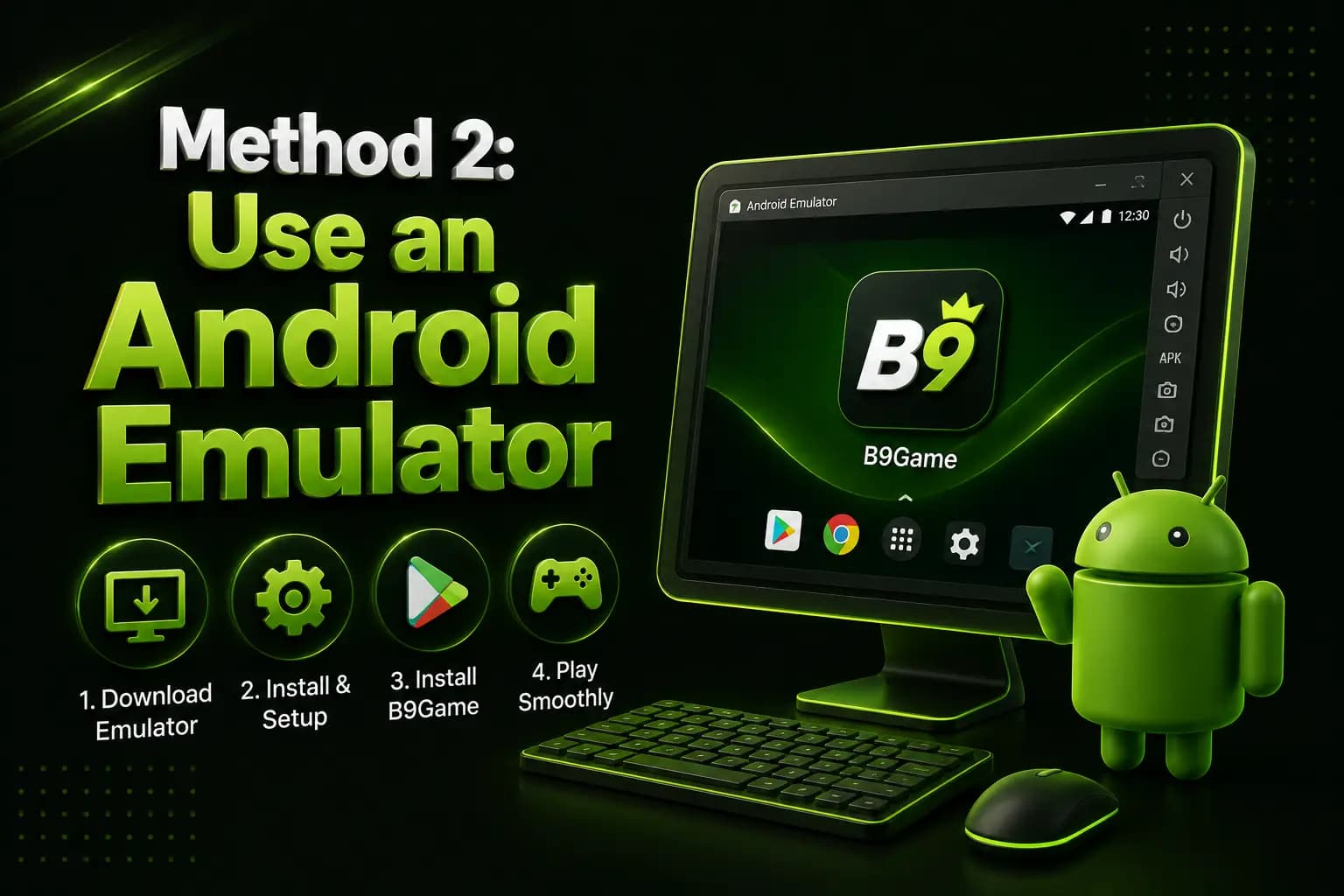
An Android emulator creates a virtual Android environment on Windows.
Popular emulator software should only be downloaded from its genuine publisher.
General Steps
- Check the emulator's system requirements.
- Download it from the verified publisher.
- Scan the installer.
- Install and open the emulator.
- Download the verified B9Game APK inside the emulator.
- Review app permissions.
- Install the APK.
- Log in with the registered number.
Suggested PC Requirements
These are general emulator recommendations, not verified native B9Game requirements:
- Windows 10 or newer
- Modern dual-core or better processor
- At least 4 GB RAM
- Several gigabytes of free storage
- Stable internet connection
- Updated graphics driver
- Virtualization enabled where required
Performance depends on the selected emulator and computer.
Method 3: Native Windows Software
Do not assume that an .exe file is genuine merely because it uses the B9Game logo.
Before installing Windows software, verify:
- Publisher name
- Digital signature
- File source
- Security scan
- Version information
- Privacy policy
- Uninstallation method
If the publisher cannot be confirmed, use browser access instead.
Browser Versus Emulator
| Feature | Browser | Android emulator |
|---|---|---|
| APK installation | Not required | Required |
| Setup difficulty | Lower | Higher |
| Storage use | Lower | Higher |
| Mobile-app interface | May differ | Usually closer |
| Security exposure | Lower when no file is installed | Depends on emulator and APK |
| Performance | Browser-dependent | Hardware-dependent |
| Updates | Usually automatic on website | APK may need manual updates |
How to Register and Log In on PC
How to Register on PC
The current registration form asks for a +92 mobile number, password, optional invitation code and privacy agreement. Even when registering on a PC, keep the mobile phone available for any SMS verification.
How to Log In on PC
The public login page requires a mobile number and password and includes a forgotten-password option. Do not allow a public or office computer to save the password.
Payment Safety on PC
A larger screen can make account details easier to review, but the same payment risks remain.
Before a deposit or withdrawal:
- Confirm the domain
- Check wallet details
- Save the transaction ID
- Avoid browser extensions
- Close remote-access tools
- Use a private network
- Never share an OTP
- Log out after completion
B9Game PC Problems
Website Does Not Open
Try:
- Another updated browser
- Clearing cookies
- Disabling a problematic extension
- Checking DNS or internet connection